
Teach more.Edit less.
Turn talking-head recordings into reviewed videos
AI-assisted video editing for talking-head and tutorial creators.
Turn raw recordings into edited videos, captions, and cover artwork with a guided Claude Code workflow.
You direct the process. AI helps with the editing. You review and approve the result.
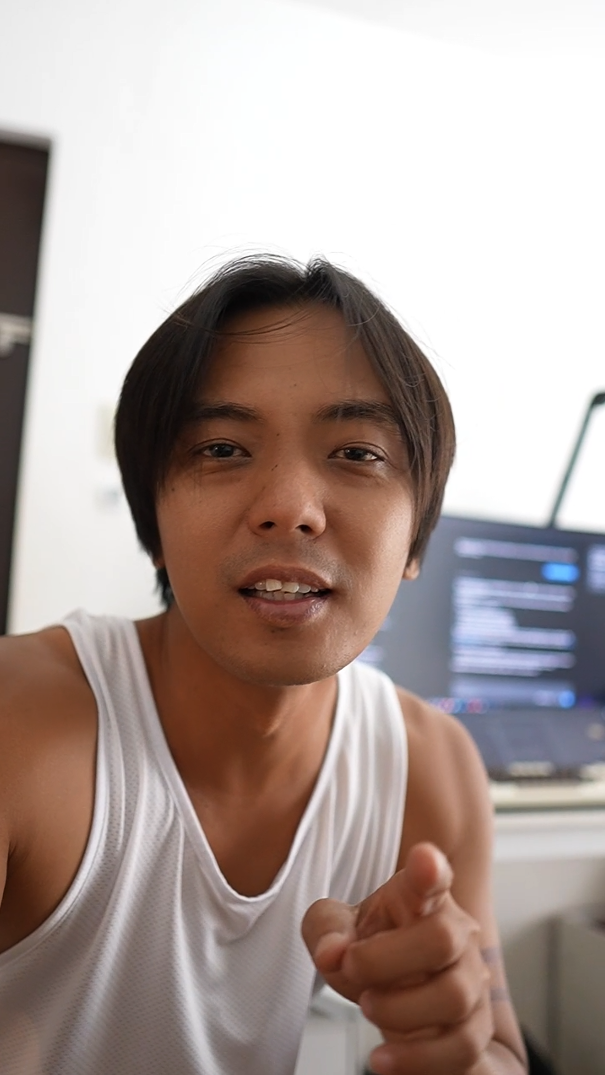
How it works
Three steps.Your judgment throughout.
- 01
Record your video
Film yourself talking to camera the way you already do. Retakes and pauses are fine.
- 02
Edit with your AI assistant
Work with Claude on take selection, transcript corrections, edits and graphics. Choose the timing of generated B-roll cards, speaker zooms and sound cues, then review the result.
- 03
Review and export
Check the transcript, sync, cut boundaries, pacing and final mix. The toolkit validates the delivery files; you approve the package before release. Social publishing stays with you.
What it helps you do
From recordingto finished.
- Review takes and tighten pauses without losing meaning.
- Correct captions and add explanatory graphics.
- Balance speech and place B-roll cards, zoom and sound cues.
- Review cut boundaries, timing and the final mix.
- Deliver validated video, subtitles and artwork.
See the result
One recording.Three deliverables.
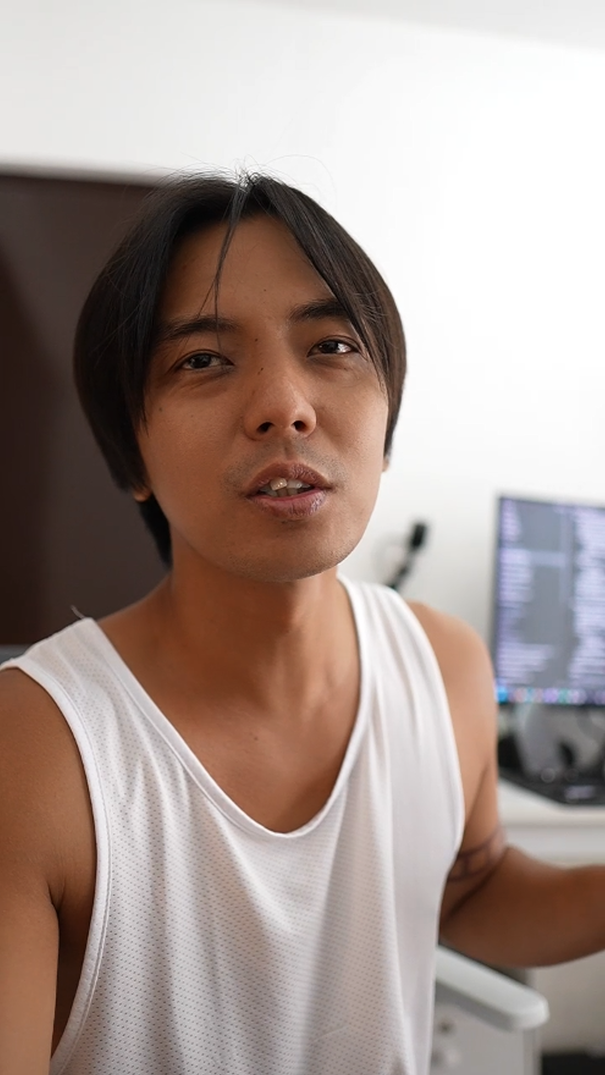
RecordingOriginal recording frame CaptionsCaption treatment example ArtworkCover artwork example

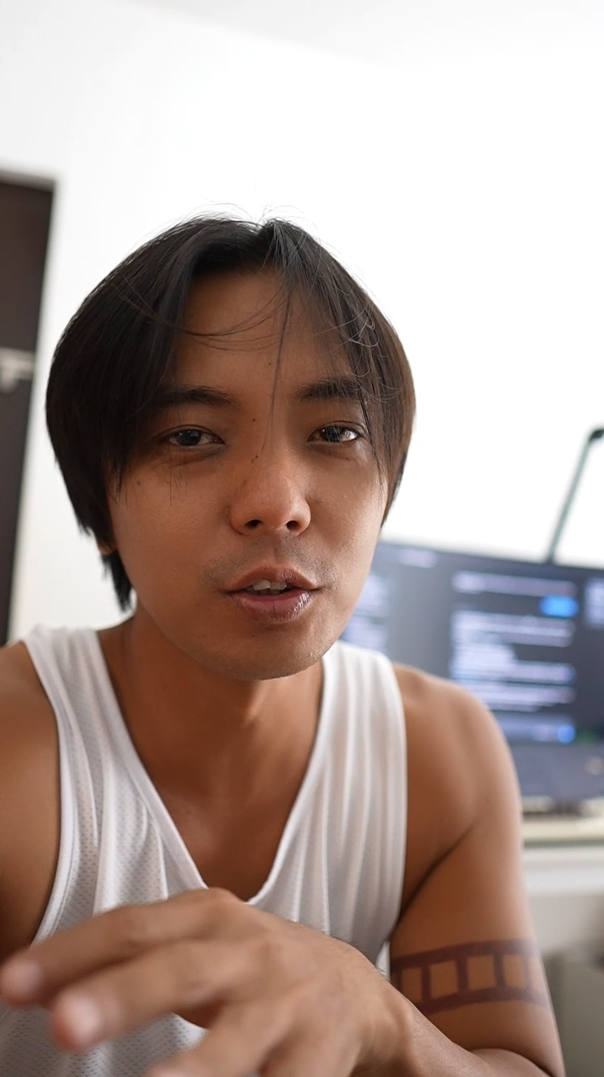
1080 × 1920 video with burned-in captions, SRT subtitles and cover artwork.
1920 × 1080 clean picture, separate SRT captions and a 1280 × 720 thumbnail.
Render caching + automatic cleanup
Keep the work.Clear the cache.
Give temporary render files a place of their own. Let Studio clean up after the job.
Choose a dedicated render-cache folder during setup, preferably on a non-system local SSD. Each job stages only the assets it needs in its own workspace for temporary files, browser data and render bundles.
Your original footage, finished videos and review records stay separate from disposable cache.
Explore storage and cleanup (opens in a new tab)- Job completeTemporary files cleared.
- Successful renders clean their owned cache after workers stop. Windows file locks can defer removal; a saved output does not guarantee all cache was removed. Normal Studio shutdown also cleans session files.
- Job interruptedTime to investigate.
- Failed-job files stay for at least 48 hours by default. Eligible expired cache is removed before a supported launch. Proven abandoned jobs get a fresh retention period.
- Still in use or uncertainProtected from cleanup.
- Active jobs and files whose ownership or process state cannot be verified stay untouched.
Check or clean on request. Use /video-clear-cache in Claude for guarded cleanup and a space report. Ask to inspect only for a preview.
Automatic cleanup is on by default. The 20 GiB cache warning is a configurable alert, not a hard cap. Cleanup runs on supported launches or on request, with no background timer. Long active sessions can keep growing.
Get started
Set upyour studio.
- Platform
- Windows x64
- Release
- Stable 1.0.0
- AI assistant
- Claude Code, your own account
Release numbering starts again at 1.0.0. This baseline retains the reviewed 1.1.1 workflow, including managed render caching and automatic cleanup.
Setup downloads more than 2 GB. Reserve at least 10 GB of free space plus room for your media and renders; 16 GB RAM is a practical starting point. Choose a short local application path and a dedicated render-cache folder to avoid deeply nested Windows paths.
Transcription, editing and rendering run locally. Claude is a hosted service with separate account and usage terms.
View the 1.0.0 release (opens in a new tab) · Manual installation (opens in a new tab)
Need help installing or configuring your studio? Tell me about your setup and mention Video Studio.
Setup help is optional. Scope and availability are agreed individually.
FAQ
Good to know.
What is a video workflow toolkit?
A local set of video tools and guided review steps, operated with Claude Code. It helps you prepare edits, review transcripts and cuts, add graphics and sound cues, then validate a delivery package. It runs on your Windows computer; this website does not upload or process your recordings.
Read the complete workflow (opens in a new tab)Which operating systems are supported?
Kraven Video Studio currently supports Windows x64. Its installation, rendering and automatic cleanup workflow have been built and tested for Windows. macOS and Linux are not currently supported.
What do I need?
A Windows x64 computer and your own Claude account/access. Setup downloads more than 2 GB; reserve at least 10 GB of free disk space plus media and render space. Use a short local application path and a dedicated render-cache folder. 16 GB RAM is a practical starting point. CPU is supported; compatible NVIDIA hardware can use CUDA.
Read the installation guide (opens in a new tab)Does the AI make the final decisions?
No. You approve transcript corrections, synchronization, take and cut decisions, and the final picture and sound. Repeated takes are flagged for your decision. Package checks support your review; they do not replace it. The toolkit does not publish for you.
What runs locally, and what uses hosted AI?
Transcription, editing and rendering run locally on your computer. Claude is a hosted assistant you access with your own account. Internet is required for setup, initial browser/font downloads and Claude access. Account and usage terms are separate from the studio.
Can I make portrait and landscape videos?
Yes. Portrait output is 1080 × 1920 with burned-in captions. Landscape output is 1920 × 1080 with a clean picture and separate SRT captions, plus a 1280 × 720 thumbnail. Both workflows require your review.
What does automatic cleanup remove?
Only eligible temporary render files owned by this installation. Successful jobs clean their cache, although Windows file locks can defer removal. Failed jobs are kept for at least 48 hours by default. Expired jobs are cleaned before a supported launch or on request. Active or unverifiable jobs stay protected. Your original footage, finished deliverables and review records stay separate. The default 20 GiB cache warning is not a storage cap, and there is no background cleanup timer.
Read the storage and cleanup guide (opens in a new tab)Can I migrate my existing studio?
Yes. The migration prompt prepares the current 1.0.0 release in a separate folder while preserving your settings, media and existing installation. Release numbering has restarted, so an earlier installation may show a higher number. Follow the official release identity and checksum, test both orientations, then decide when to switch.
Open the Claude migration prompt (opens in a new tab)Do I need KOS?
No. KOS integration is optional and is not installed or activated by the studio.
How is it licensed?
The original project code is licensed under Apache-2.0. Third-party tools, models and fonts retain their own terms. Claude access and any required commercial licenses are separate.
Third-party notices (opens in a new tab)Where can I find known issues?
Review the documented installation and Studio limitations before installing. Installation checks do not replace reviewing the transcript, timing and final result from your own footage.
Read known issues (opens in a new tab)